Knowing a policy is configured isn’t the same as knowing it works
A Secure Web Gateway applies policies to web traffic. A team can check that a rule exists, but to know how the gateway behaves they have to attempt the threat and look at the response, without putting a real threat on their network.
Four questions, all at Layer 7.
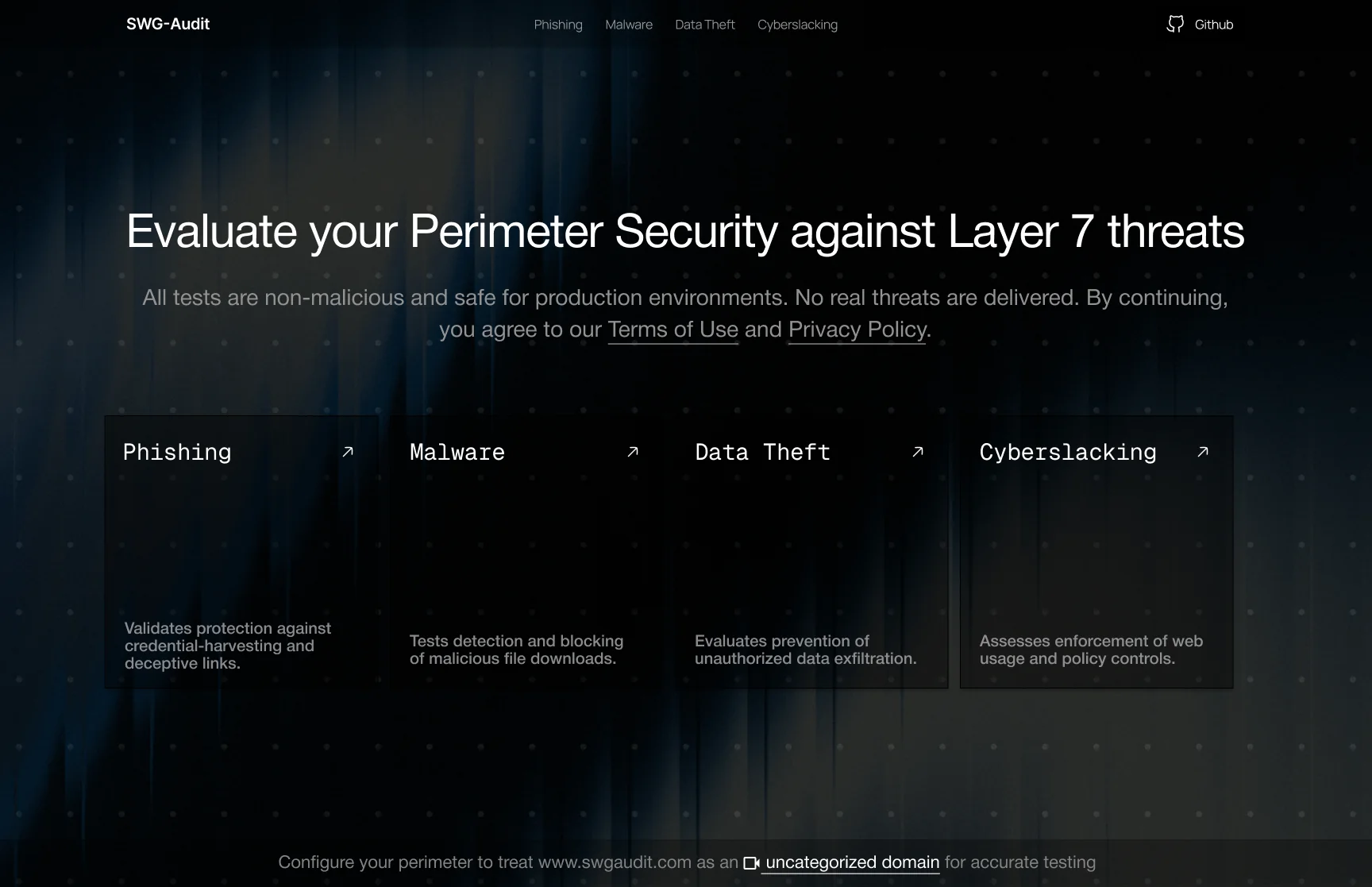
Can the gateway stop a phishing login, a malware download, an outbound data transfer and restricted browsing? Infrastructure and endpoint controls were out of scope.
The test itself had to be safe.
Teams would run these tests on live networks, so nothing real could be sent, stored or delivered. The home screen says so before anyone starts.
Two people, one question about the gateway
The person who owns the policy and the person who runs the test want the same answer, for different reasons.
Security administrator
Owns the gateway policy
I configured the rule. Now I need proof it actually stops the threat.
Needs
- A test for each kind of threat they’re accountable for
- A result they can explain to management
- Certainty that the test itself is harmless
Lives in
IT technician
Sets up and troubleshoots the gateway
Give me one safe action and tell me plainly what happened.
Needs
- One clear action per test
- Boundaries visible before acting
- A quick way to retry or move to the next test
Lives in
Three rules for every test screen
Each scenario screen follows the same structure, so a team that learns one test can run all four.
State the boundary first.
Someone about to type credentials or download a file needs to know nothing real is sent, stored or delivered.
Seen in Test Scenario panel
Make the test action explicit.
Each scenario ends in one clear action: run, download, upload or choose a category.
Seen in Run · Download · Upload
Describe both outcomes up front.
Protected and not protected are explained before the test, so the result is never a surprise.
Seen in Protected / Not protected notes
Five steps, the same in every scenario
- Step 01
Choose a threat
The home screen lists four threats, with one line on what each test checks.
- Step 02
Read the boundaries
The scenario panel says what the test does and what it never does.
- Step 03
Run a safe test
Test credentials, a plain-text file, a small upload or a content category.
- Step 04
Read the result
A full-screen verdict says what got through, in plain words.
- Step 05
Continue
Retry the same test or jump to the next threat. The four tests form a loop.
Three structural choices, made in low fidelity
I compared the strongest options as wireframes with the two technicians before any visual design.
How should someone choose a test?
Each test asks for a different action: credentials, a download, an upload or a category. On one page, it blurred which result belonged to which test.
Trade-off accepted: One extra click to start, in exchange for a focused page and a result that clearly belongs to one test.
Where should the boundaries live?
People hesitate right before they type credentials or download a file. That’s the moment the boundary has to be on screen.
Trade-off accepted: A denser screen, so the scenario copy stays short and the guardrails read as a checklist.
How should the result appear?
The result is the whole point of the test. It can’t be missed or mistaken for an ordinary form message.
Trade-off accepted: It interrupts the page on purpose. Retry and the next threat keep the momentum going.
Each threat gets a guarded test and a plain result
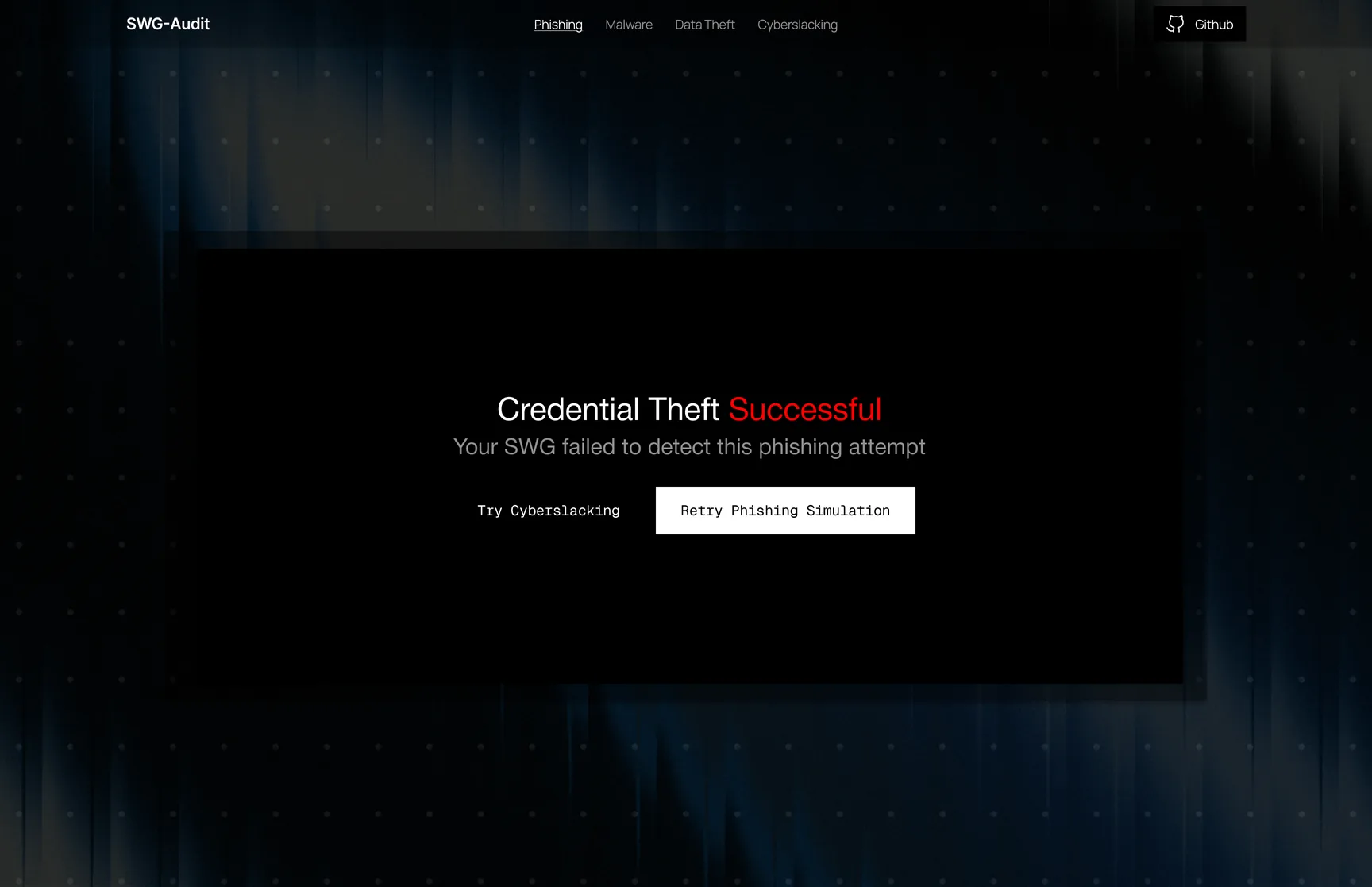
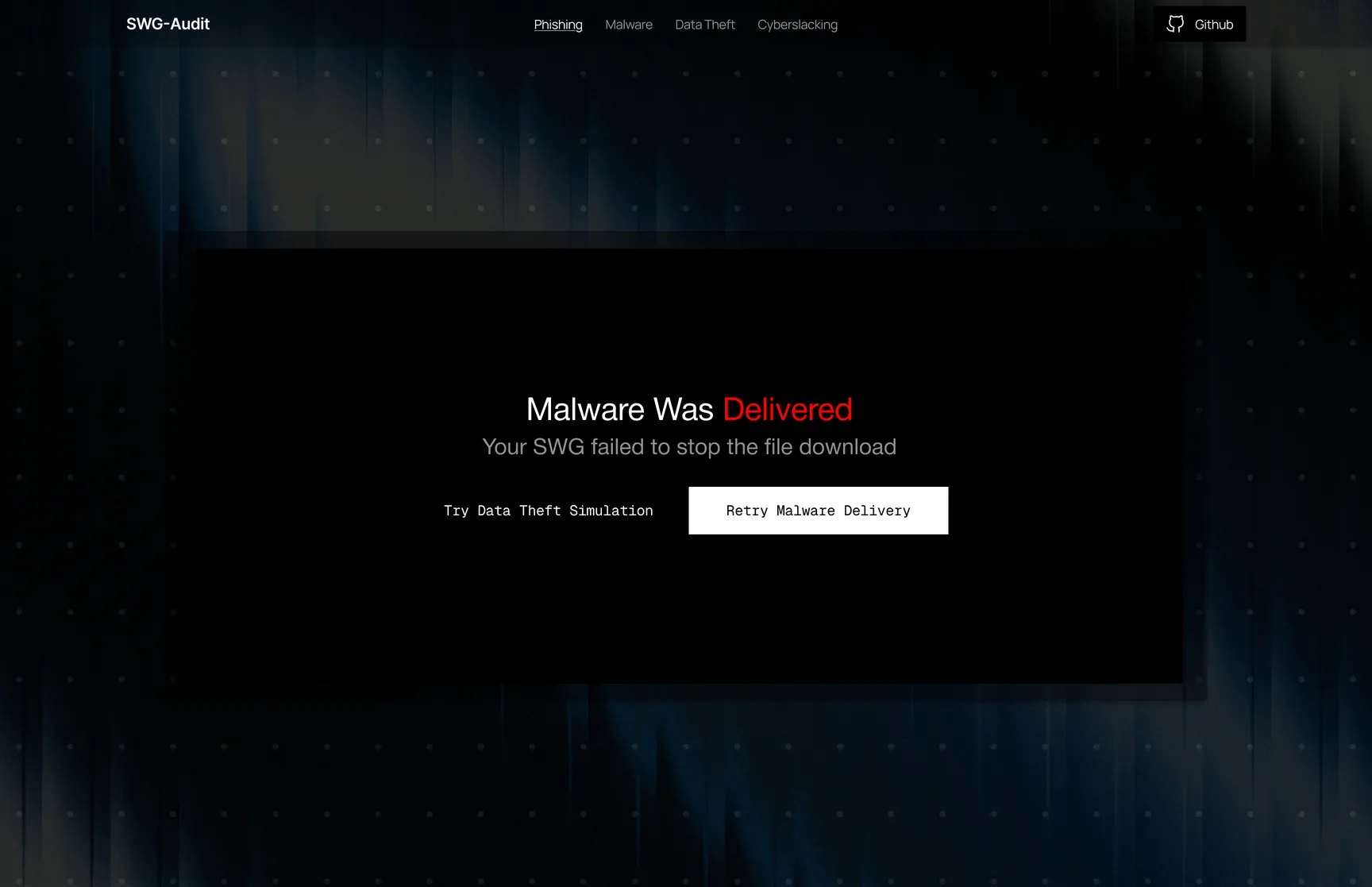
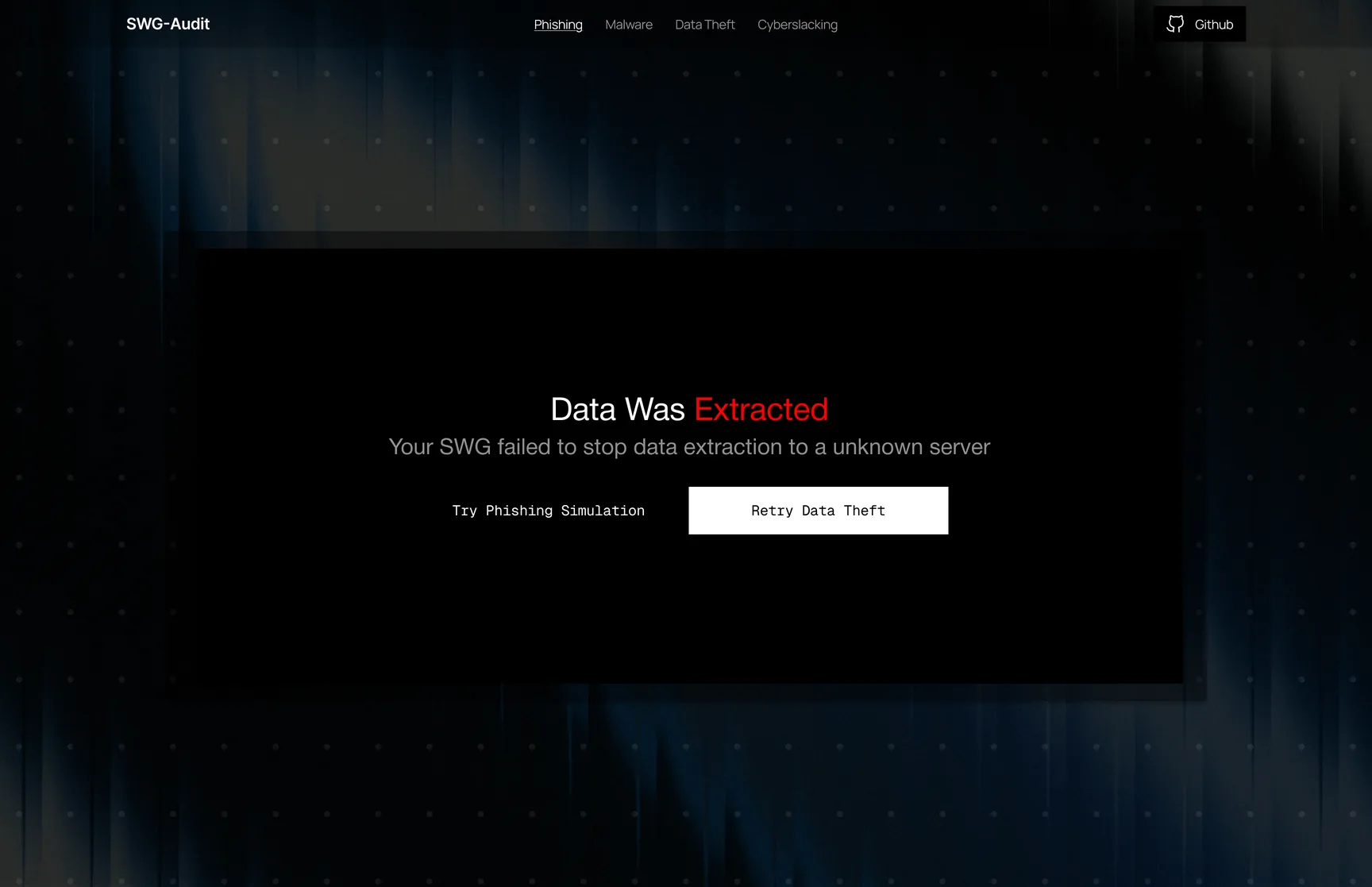
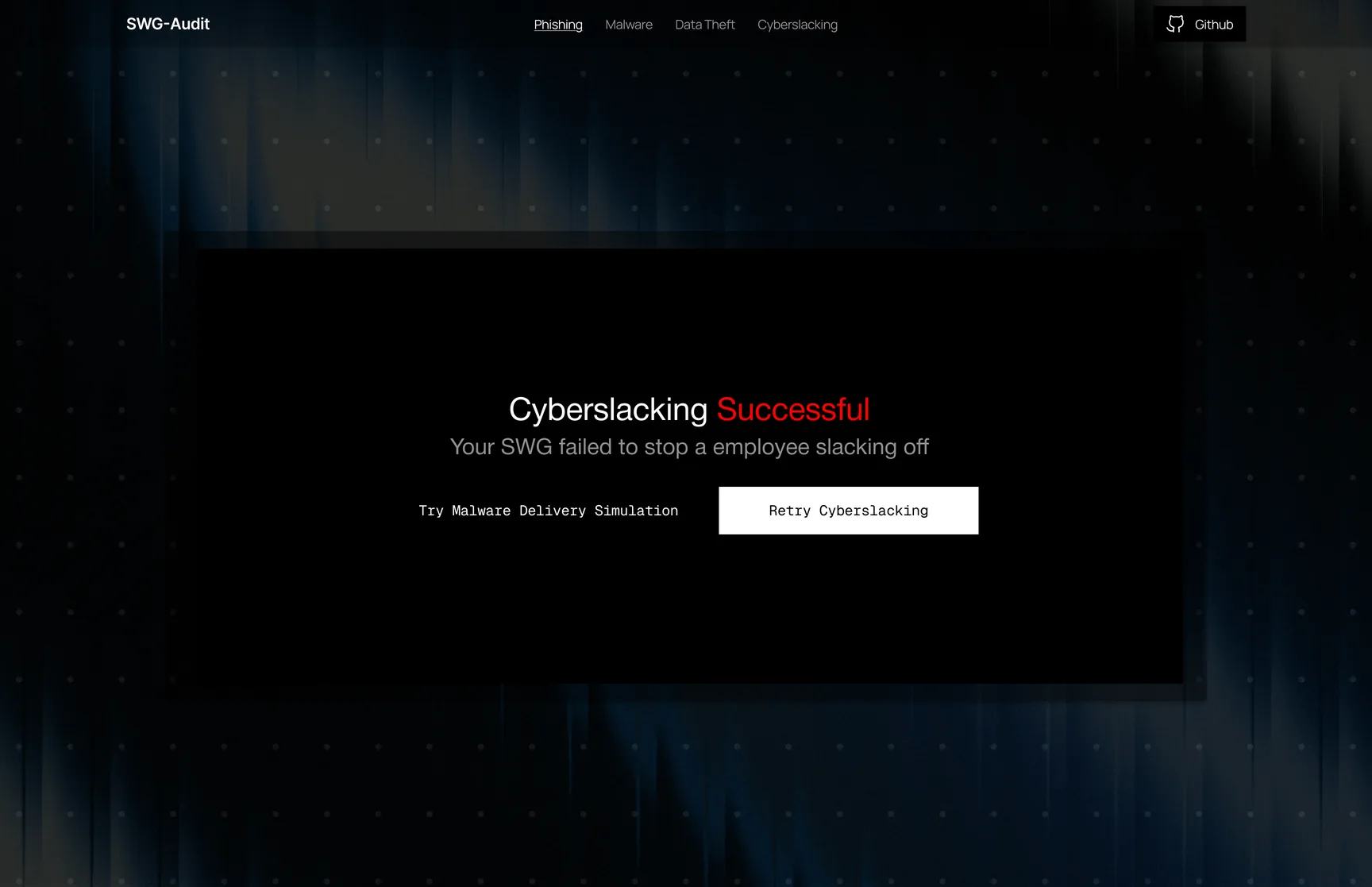
The results shown are the exposed outcomes: what the person sees when the gateway lets the test through. Every result offers Retry and a link to the next threat.
Phishing
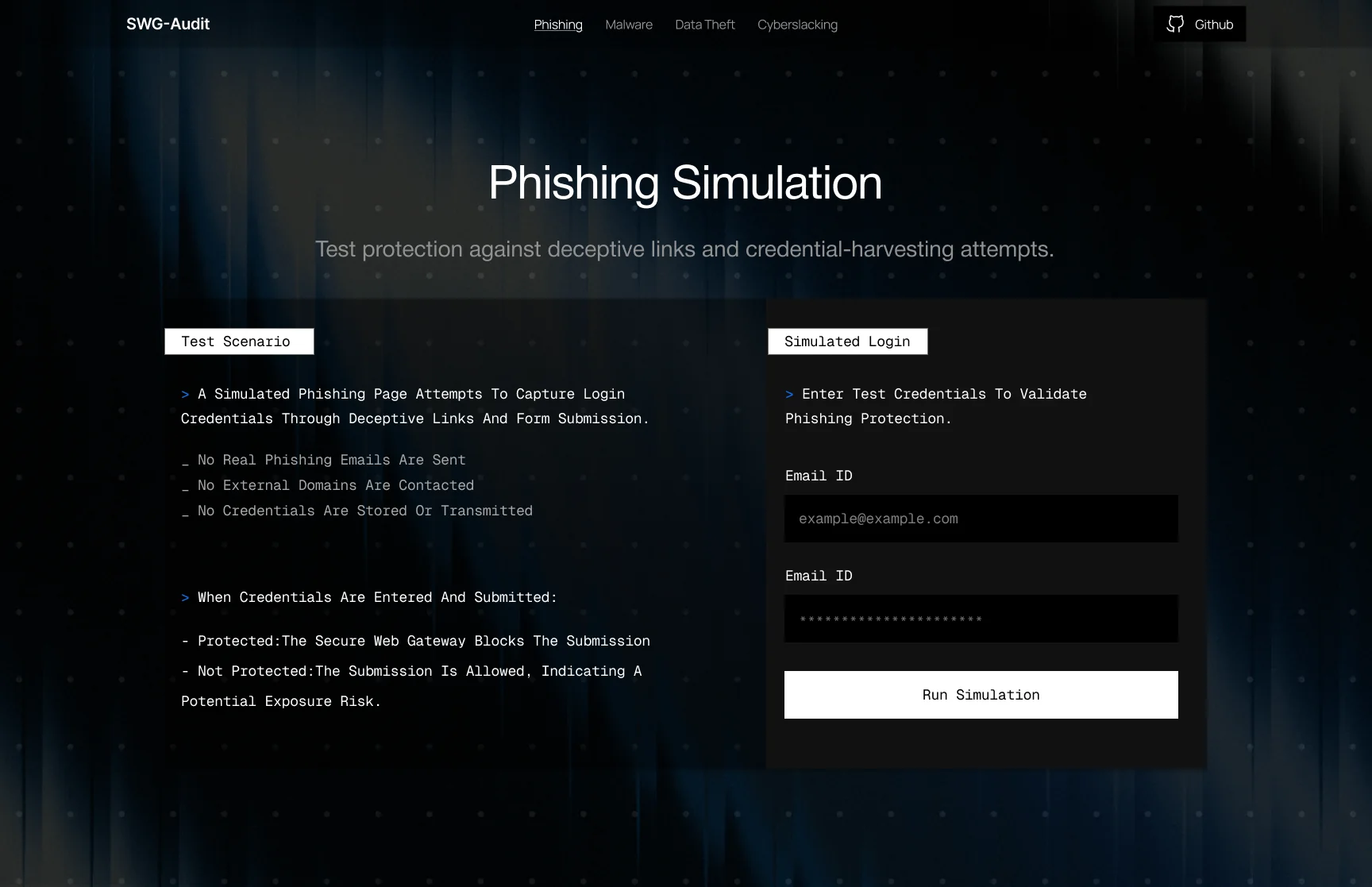
A simulated login asks for test credentials. No real emails are sent, no external domains are contacted and nothing is stored. If the submission goes through, the result reads “Credential Theft Successful”.
Malware Delivery
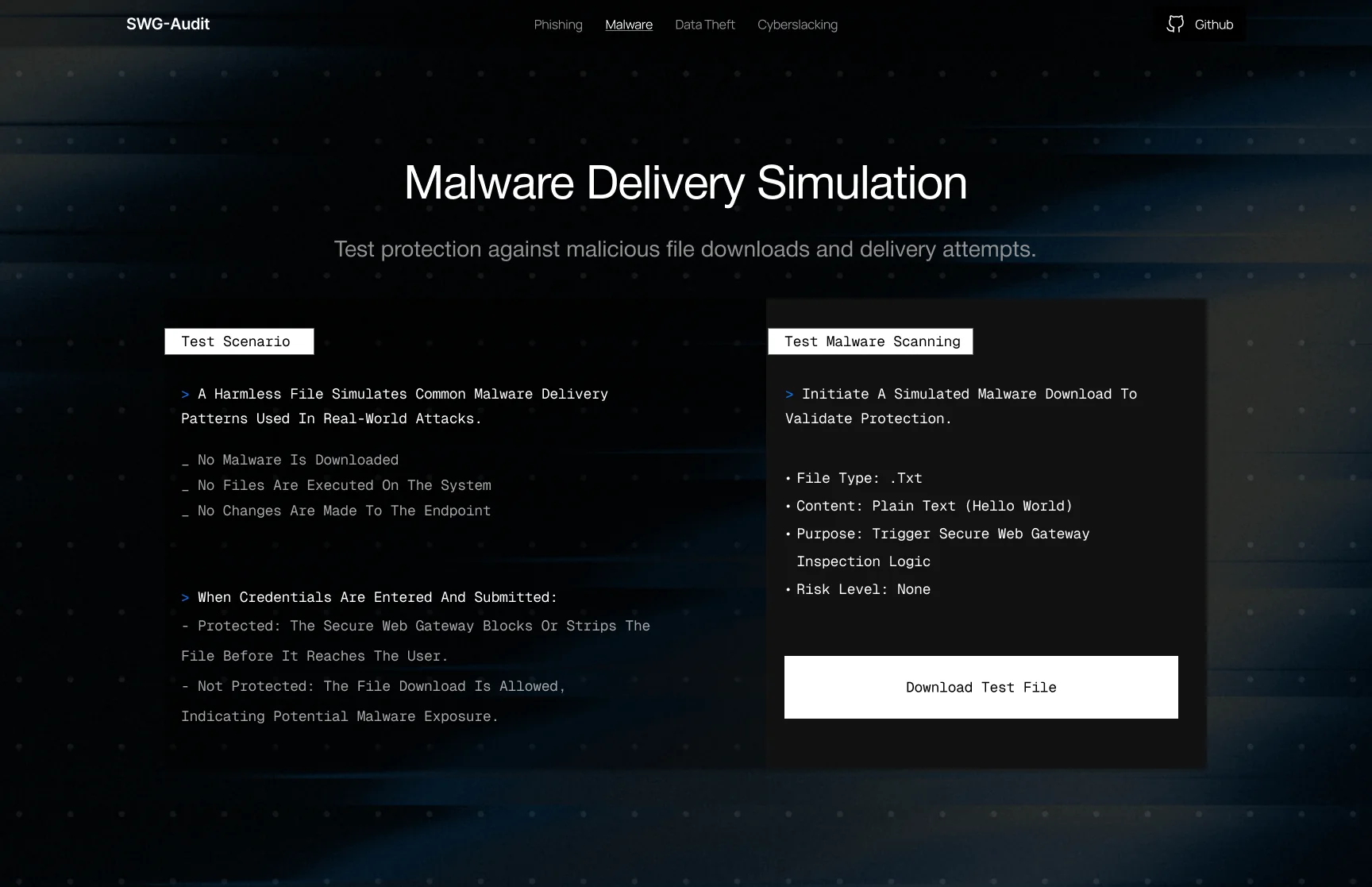
The test file is plain text that says “Hello World”, with a risk level of none. If the download is allowed, the result reads “Malware Was Delivered”.
Data Theft
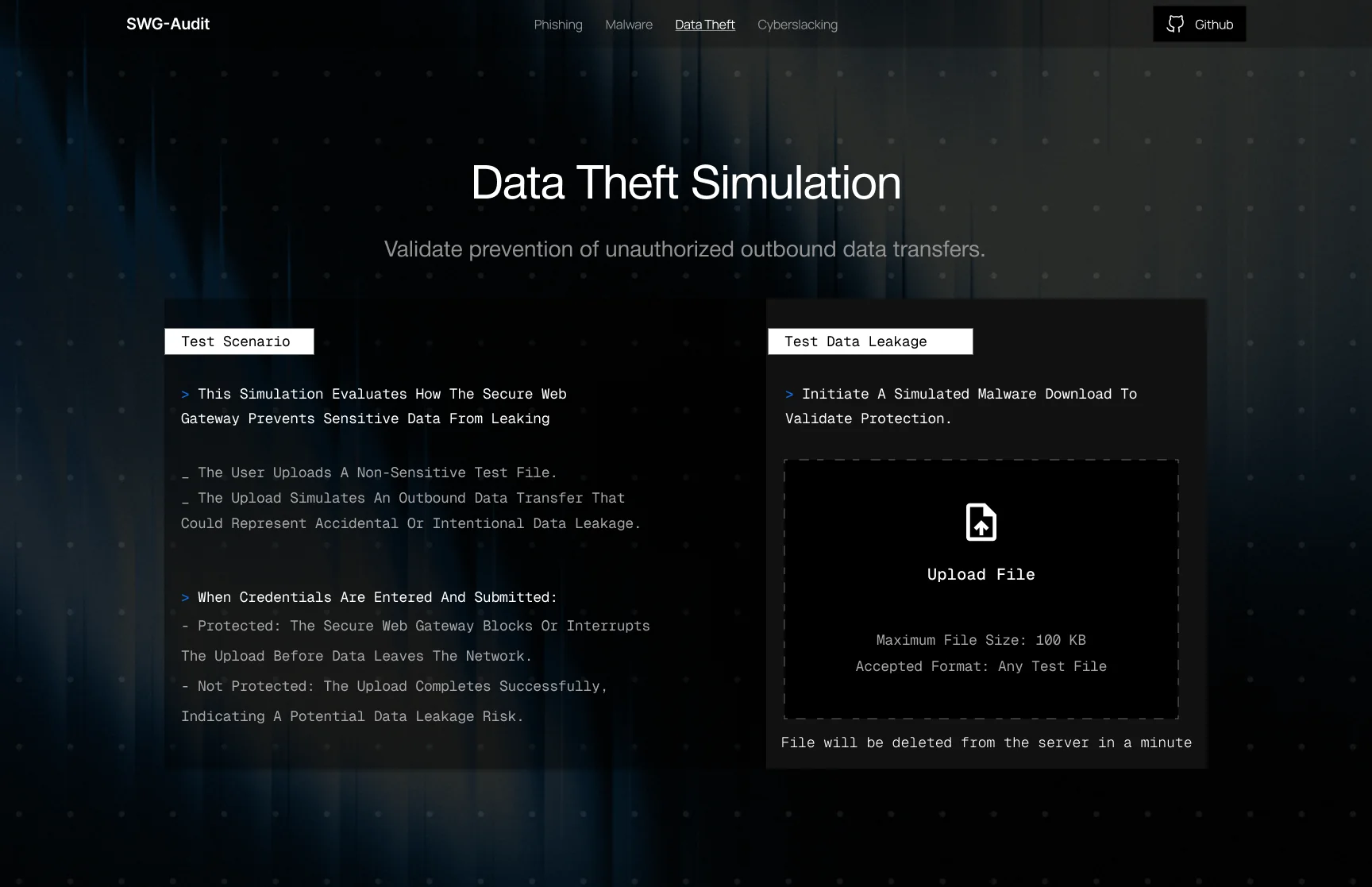
A non-sensitive test file of up to 100 KB is uploaded and deleted from the server within a minute. If the upload completes, the result reads “Data Was Extracted”.
Cyberslacking
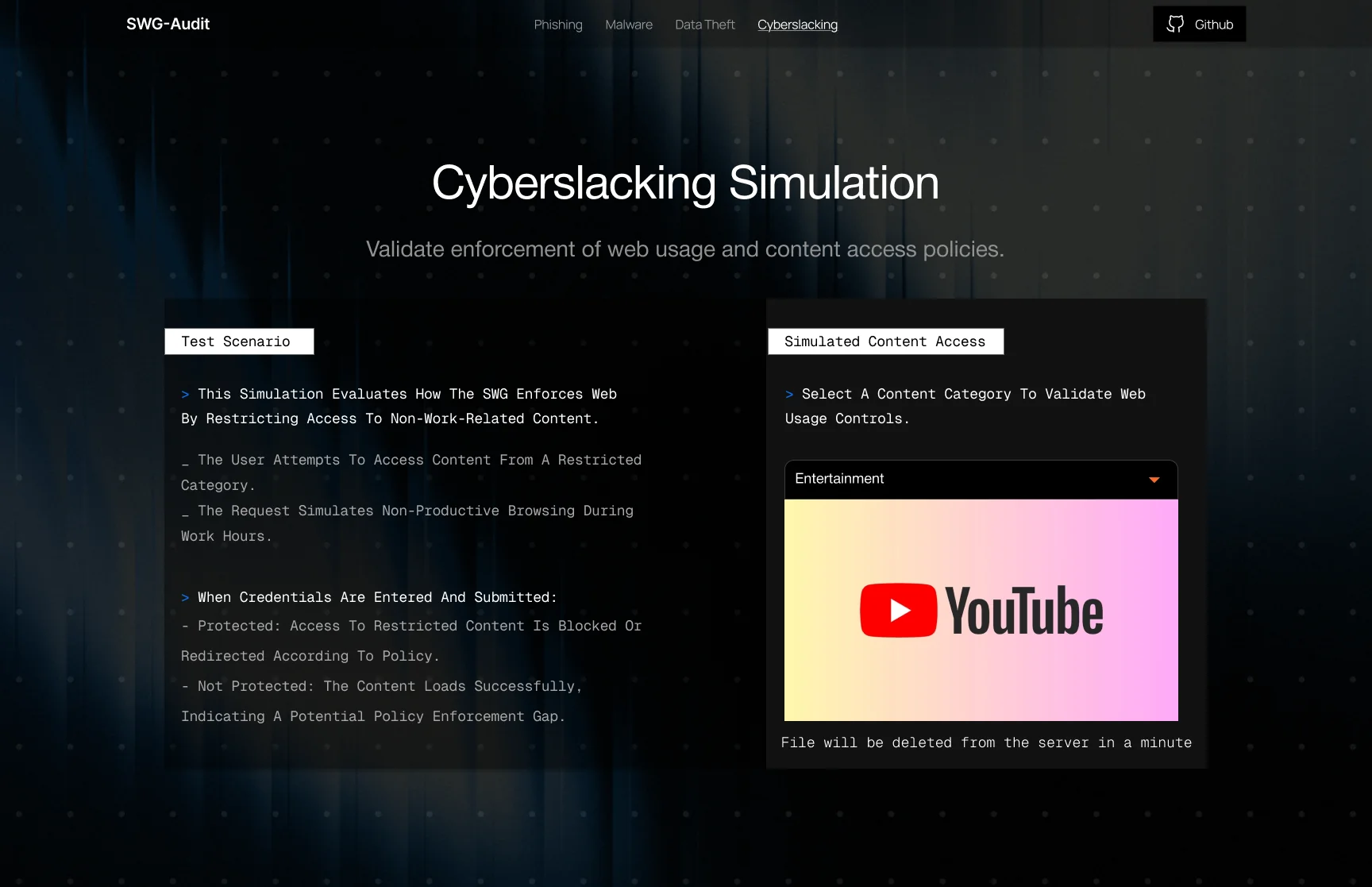
The person picks a restricted content category, such as Entertainment. If the content loads, the result reads “Cyberslacking Successful”.
Where security testing broke the usual rules
A threat simulator flips ordinary interface conventions: success can be bad news, and the safest test still has to be real. These four calls handle that.
- Decision 01
Make the payload harmless by design, then say so
- The question
- How can a test hit the real gateway without putting a real threat on a live network?
- Options I weighed
- Why this one
- The gateway has to see a genuine request to respond to it. A harmless payload keeps the test real for the gateway and safe for the network, and stating that before the action is what lets people press Run.
- Trade-off I accepted
- The tests prove the policy path, whether this kind of transfer is let through, rather than detection of a specific malware family.
- Decision 02
Red means the gateway failed, even when the action succeeded
- The question
- What colour is a test that “worked”?
- Options I weighed
- Why this one
- The audience is the person accountable for the gateway. From their side every completed attack is bad news, so the colour follows their stakes, not the button press.
- Trade-off I accepted
- It inverts a convention people know well, so the result copy names the outcome in plain words instead of relying on colour.
- How I knew
- In testing I listened for whether people read “Successful” in red as a gap in the gateway, not a win.
- Decision 03
Design the exposed outcome first
- The question
- Which result screen matters most to get right?
- Options I weighed
- Why this one
- An exposed result triggers work: a policy change, a ticket, a conversation upward. It has to be unmissable and unambiguous before the reassuring states are polished.
- Trade-off I accepted
- Protected, inconclusive and failed-test states are the next design step, so one result never implies the whole network is safe.
- Decision 04
Every result ends in Retry or the next threat
- The question
- What should someone do after reading a verdict?
- Options I weighed
- Why this one
- An audit is a run, not a single test. Admins fix a policy and retest, or work through all four threats in one sitting, and both paths start from the result.
- Trade-off I accepted
- There’s no summary across the four tests yet; a combined report is the natural next screen.
One label changed what the test felt like
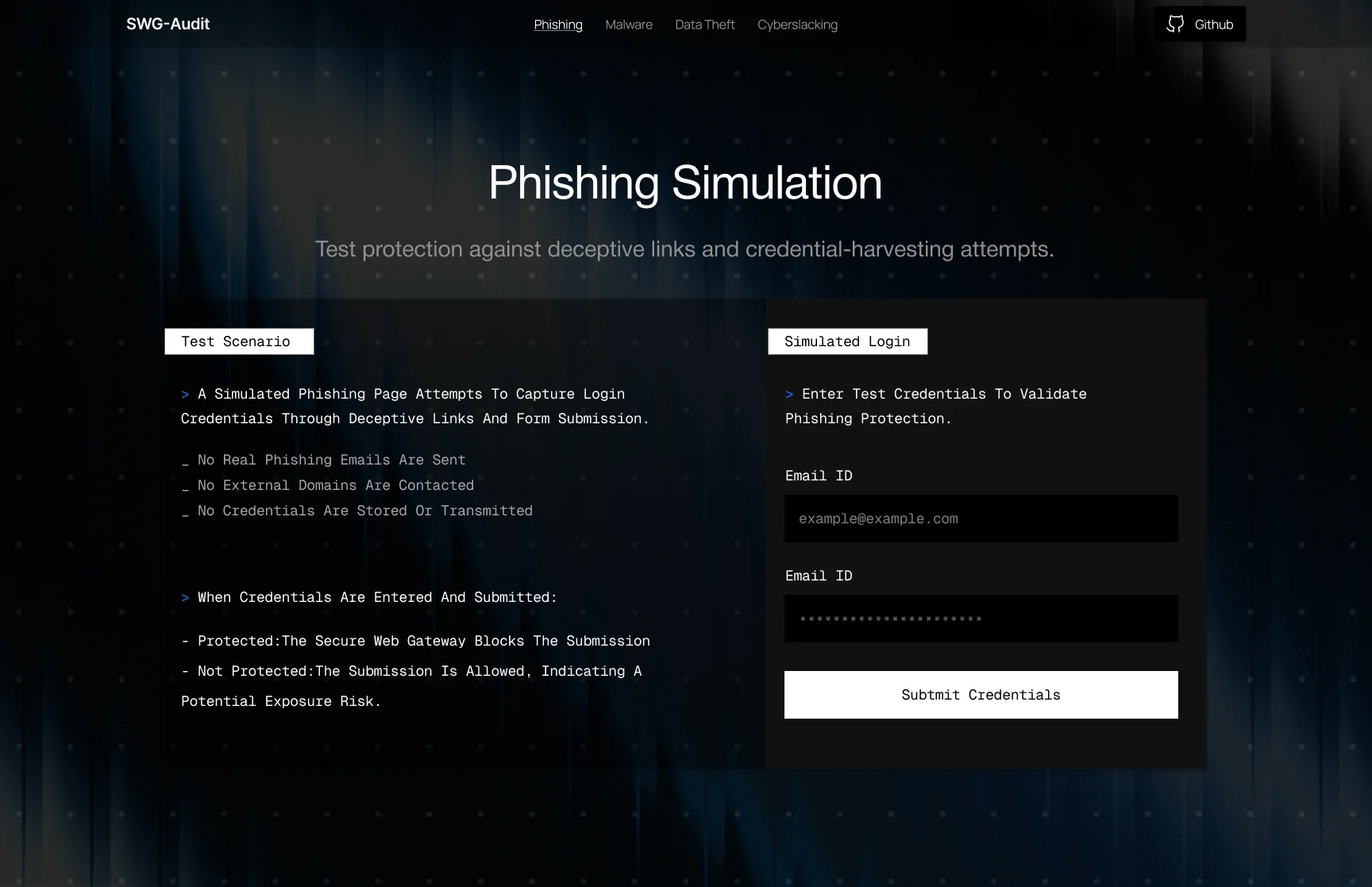
The first phishing screen asked people to “Submit Credentials”, which sounds like handing over a real password, and the button carried a typo. The final screen says “Run Simulation”: the same action, framed as a test.
What I’d fix before handoff
Reviewing the final screens again turned up copy that was reused between scenarios. In a security tool, the words have to match the action exactly.
Phishing
The password field is labelled “Email ID”. It should read “Test password”.
Malware, Data Theft, Cyberslacking
All three still say “When Credentials Are Entered And Submitted”. Each should describe its own action: download, upload or open.
Data Theft
The panel says “Initiate A Simulated Malware Download”. It should describe an upload.
Cyberslacking
“File will be deleted from the server in a minute” belongs to the upload test, not to content access.
Result screens
The navigation keeps “Phishing” underlined on every result, and two lines need grammar fixes: “a unknown server” and “a employee”.
Moderated sessions with 20 participants
Security administrators and IT technicians worked through the clickable prototype. Every session used the same five tasks, and I asked people to think aloud.
Task 1 · Threat library
Pick the test that checks whether credential phishing is blocked.
Task 2 · Test scenario panel
Before running it, tell me what this test will and won’t do.
Task 3 · Malware result
Run the malware test and tell me what the result means for your gateway.
Task 4 · Data theft upload
Try the data theft test with a file of your choice.
Task 5 · Retry · next threat
From a result, move on to the next threat.
What I listened for
Boundary before action
Could they say what the test would never do before they clicked?
Reading red correctly
Did they read “Successful” in red as a gap in the gateway, not a win?
Knowing what’s next
Did they know where to go after a result, without help?
An internal concept, nine screens deep
The concept delivers a threat library, four scenario screens and four result screens, all built on one repeatable structure.
Key Learnings
A completed action can be the bad news
Every result here is red because the test succeeded: a completed upload means data left the network. Security testing flips the usual meaning of success.
State the boundary before the action
People hesitate before typing credentials or downloading a file. Saying up front what never happens is what lets them run the test at all.
The result needs as much design as the test
Only the exposed outcome is designed. Protected, inconclusive and failed-test states come next, so one result never implies the whole network is safe.
Customer Portal
Self-serve customer portal & live telemetry.